In organizations where data is shared between different departments, it is crucial to restrict access to only the information that is necessary. To this end, Microsoft Power BI offers Row-Level Security (RLS) and Object-Level Security (OLS).
Row-Level Security
Row-Level Security (RLS) is a security feature in Power BI that restricts access to rows in a table based on the identity of the user viewing the report. Rather than duplicating reports for different user groups, RLS allows you to apply filters at the data level so that each user sees only the data they are permitted to view.
This is crucial for preserving data confidentiality and integrity, especially in scenarios involving sensitive or proprietary information. RLS operates within the Power BI data model and ensures that unauthorized users cannot access restricted data, even through indirect methods such as slicers or drill-downs.
Setting Role-level security :
- Create Roles: Use DAX (Data Analysis Expressions) or logical statements to define roles that filter the data. For example, you might create a role for "Territory Managers" that only allows them to see data for their respective territories.
- Testing: After setting up the roles, test them within Power BI Desktop using the "View As" feature to ensure that the data is being filtered correctly according to the defined roles.
- Deployment: Finally, publish the report to the Power BI service and confirm the RLS configurations are working as expected in that environment.
Static vs Dynamic RLS Architectures
Row-level security can be split into two types: static and dynamic.
Static RLS implementation
Static RLS involves creating roles with hardcoded DAX filters. Each role corresponds to a specific group or segment, such as a geographic region or department.
Here are the general steps to implement a static RLS:
- Create a role named, e.g., "Region_East."
- Apply a filter such as [Region] = "East" to that role.
- Assign specific users to the role in Power BI Service.
Dynamic RLS implementation
Dynamic RLS uses functions like USERNAME() or USERPRINCIPALNAME() combined with mapping tables to dynamically filter data based on user identity.
Here are the general steps to implement a dynamic RLS:
- Create a mapping table linking users to access levels. This will be your security table. This table should include columns like user emails, their access regions, and their names.
- Write a DAX filter like: [Region] = RELATED(UserRegion[Region])
- Filter that table with: UserRegion[Email] = USERPRINCIPALNAME()
Example: RLS based on SAP roles granted to user
The basis for setting rights are SAP tables containing information about cost centers assigned to individual users via business roles. The resulting authorization table obtained from the above SAP tables contains both the email address matching the logged-in user and the assigned cost centers. The user's email address appears multiple times for each assigned cost center:
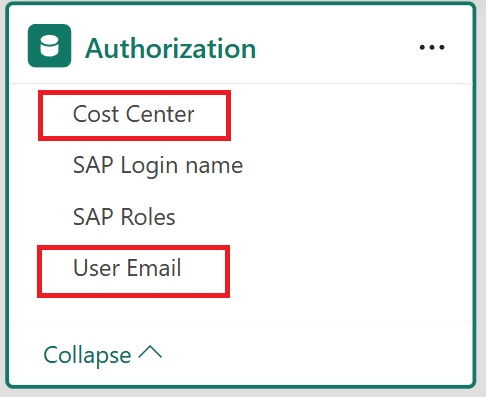
Dynamic RLS uses function USERPRINCIPALNAME() as a logged-in user and apply filter on Table Cost Center:
VAR Logged_User =

   LOWER(USERPRINCIPALNAME ())

RETURN

       CALCULATE (

           COUNTROWS ( 'Cost Center' ),

           'Cost Center'[Cost Center Key]

               IN CALCULATETABLE (

                   VALUES ( Authorization[Cost Center] ),

                   FILTER ( ALL ( Authorization), [User Email] =  Logged_User )

               )

       ) > 0
The logged-in user then sees only data that is linked to the assigned cost centers.
