Incremental refresh is a feature in Power BI that allows you to increase efficiency when refreshing data by only updating the most recent data instead of completely rewriting the entire dataset. This is especially useful for large datasets as it minimizes the amount of data handled during the refresh process, reducing load times and resource usage.
Here’s how incremental refresh works:
- Data Partitioning: The data is partitioned based on defined time frames, like days or months. This allows Power BI to identify which data partitions need to be refreshed based on changes.
- Change Detection: It can check for changes in specific fields (like the maximum value of a date field) and trigger a refresh only if there’s new data to incorporate. For example, if today's date doesn't have new data since the last refresh, it won't load that day's data again.
- Limitations: Incremental refresh is available only in Power BI service, and usually requires a Power BI Premium license for extensive capabilities. In the Pro version, while you might refresh data multiple times per day, it does not include incremental refresh.
This approach helps keep data up-to-date while keeping performance optimal, particularly with frequently changing datasets
Benefits of incremental refresh
Incremental refresh offers several benefits, particularly when dealing with large datasets in Power BI. Here are the main advantages:
- Improved Performance: By only refreshing the most recent data partitions instead of the entire dataset, incremental refresh drastically reduces the time and resources needed during the refresh process.
- Efficient Data Handling: It minimizes the workload on both the server and network, leading to faster report availability and improved user experience, especially when using data sources that receive frequent updates.
- Cost-effective: For organizations using Power BI Premium, incremental refresh can lead to significant savings in compute resources, as less data processing time translates to lower costs.
- Reduced Load Times: Users can access reports with current data more quickly since only the new or changed data is processed, rather than waiting for large dataset refreshes.
- Better Management of Historical Data: It allows users to keep a subset of historical data while efficiently managing updates to the most recent data, which is particularly valuable for data models that rely on time-based analysis.
- Automation Capability: Incremental refresh is ideal for scheduled refreshes, allowing organizations to automate data updates at specific intervals without manual intervention.
These benefits make incremental refresh a crucial feature for data analysts and organizations that need to work with large and frequently changing datasets in Power BI.
Setting incremental refresh
To set up incremental refresh in Power BI, follow these steps:
- Prerequisites: Ensure you have Power BI Pro or Premium, as incremental refresh is not available in the free tier.
- Dataset Preparation:
- Start by opening your Power BI Desktop and loading your dataset.
- You may need to specify which table or data source will benefit from incremental refresh.
- Define Parameters:
- Create two parameters in Power Query:
- RangeStart: This parameter will define the start of the time range for data loading.
- RangeEnd: This parameter will define the end of the time range.
- Create two parameters in Power Query:
- Filter the Data:
- After creating the parameters, apply a filter to your data query that uses these parameters to filter rows based on the date or time field that you want to use for incremental refresh.
- For example, filter your data to include only records where your date field is greater than or equal to RangeStart and less than or equal to RangeEnd.
- Configure Incremental Refresh:
- Go to the "Modeling" tab in Power BI Desktop, and select "Manage Parameters" to set up incremental refresh policies.
- Set how many periods of historical data you'd like to refresh and how many recent data snapshots you want to keep. For instance, you might want to keep the last 5 days of data but refresh daily.
- Publish the Report:
- Once you’ve set the parameters and filters, publish the report to Power BI Service.
- The first time you publish, Power BI will load all data based on the defined range.
- Define Refresh Plan in Service:
- In Power BI Service, you can then set the refresh schedule for your dataset.
- Any subsequent refreshes will honor the incremental refresh configuration you set up in Power BI Desktop, refreshing only the latest data.
Following these steps allows you to efficiently handle large datasets by only updating the necessary portions rather than the entire dataset.
Set Up Incremental Refresh Step by Step
Step 1: Open a report into Power BI Desktop
- Open Report in a Power BI Desktop
- Click Home → Transform Data to open Power Query Editor
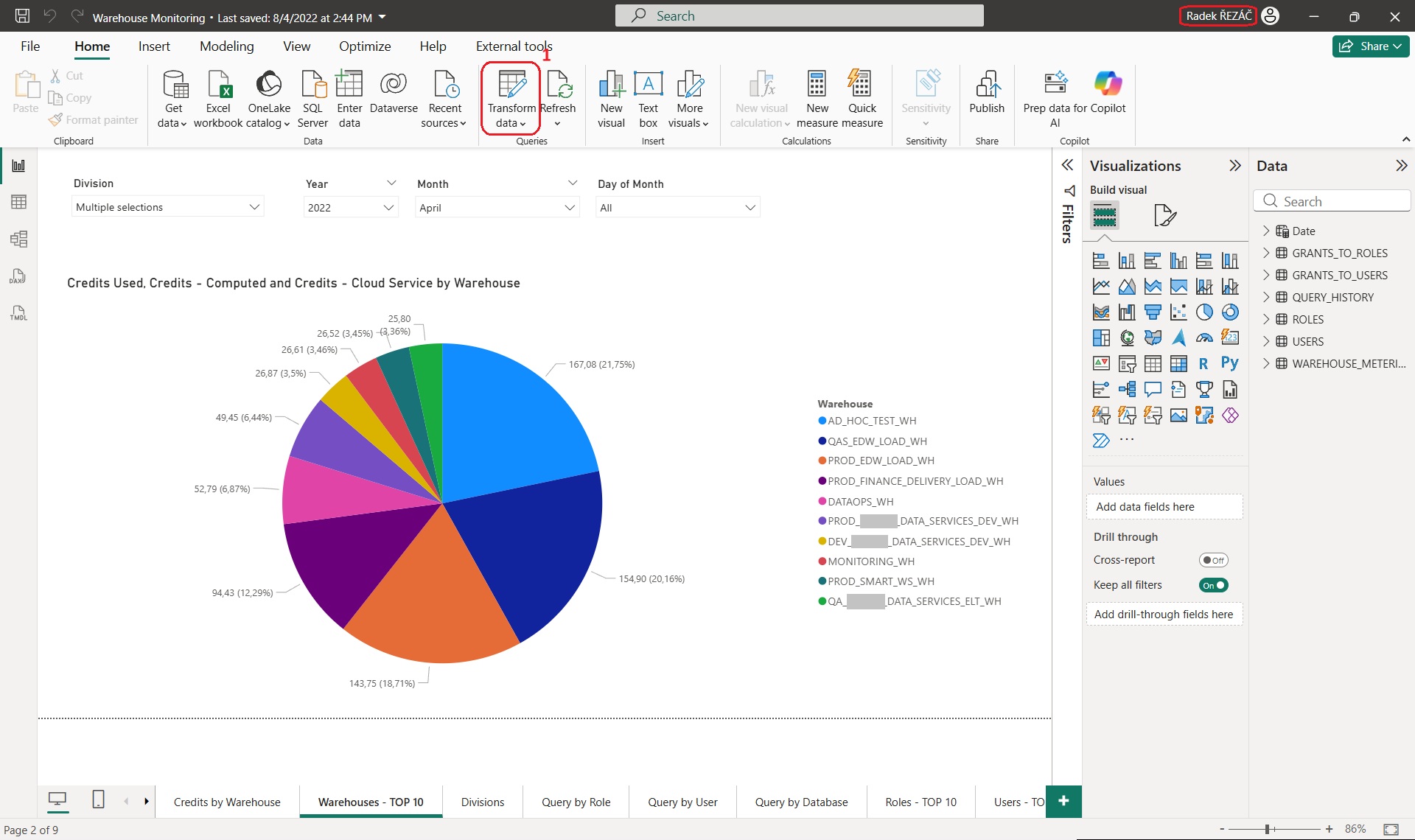
Step 2: Create Range Parameters
- In the Power Query Editor, navigate to Manage Parameters —> New Parameter.
- Create two parameters:
- RangeStart (Date/Time) — Set a default value (01.01.2020 0:00:00).
- RangeEnd (Date/Time) — Set a default value (01.01.2021 0:00:00).
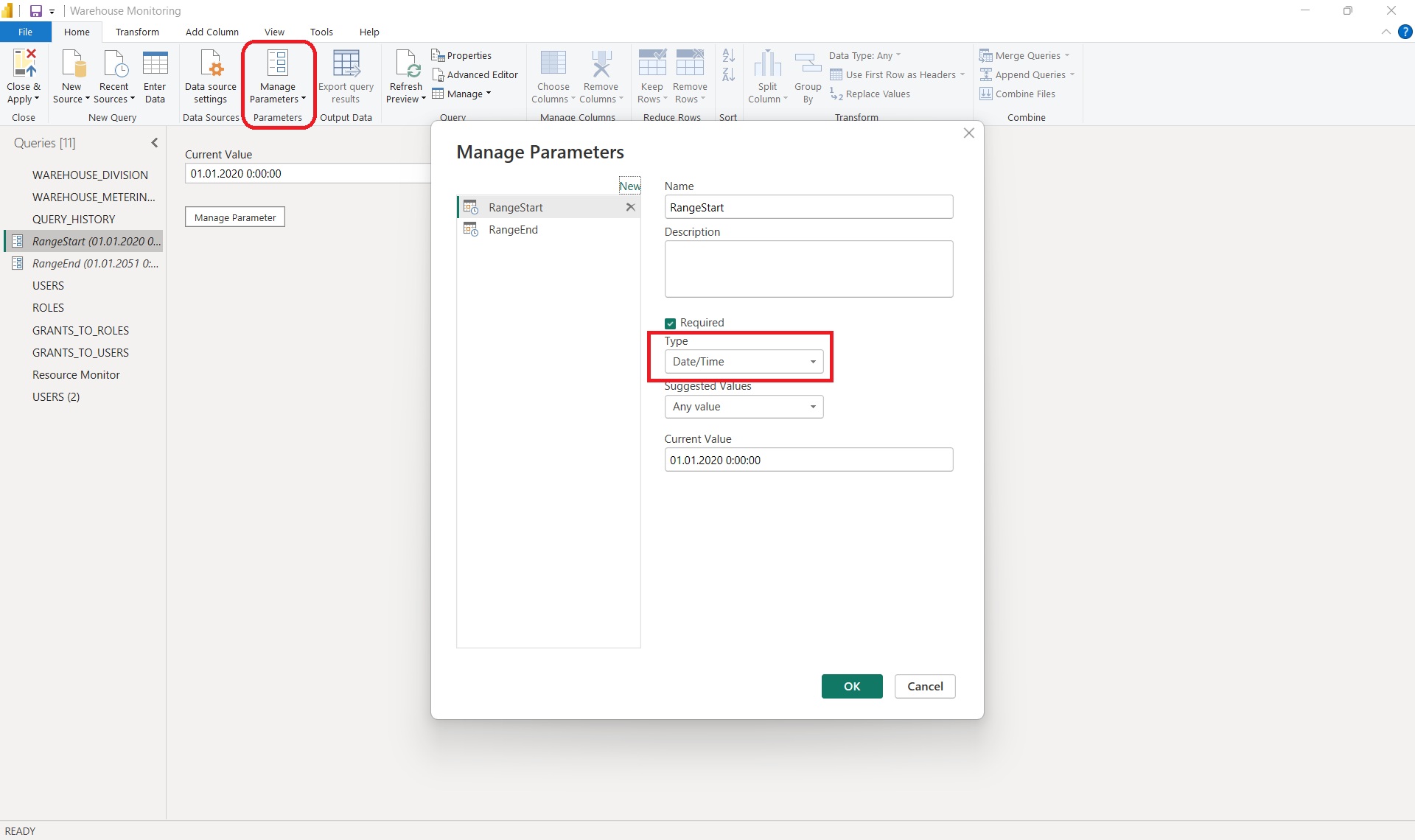
Step 3: Apply Filters to the Data
- Select the date column you want to filter by. Click Filter —> Custom Filter.
- Set the filter condition:
- Greater than or equal to —> RangeStart.
- Less than —> RangeEnd.
- Click Close & Apply to apply changes.

Step 4: Enable Incremental Refresh
- In Power BI Desktop, right-click the table —> Incremental Refresh.
- Configure settings:
- Store data for (like 5 years).
- Refresh data for (like the last 1 month).
- Click Apply.
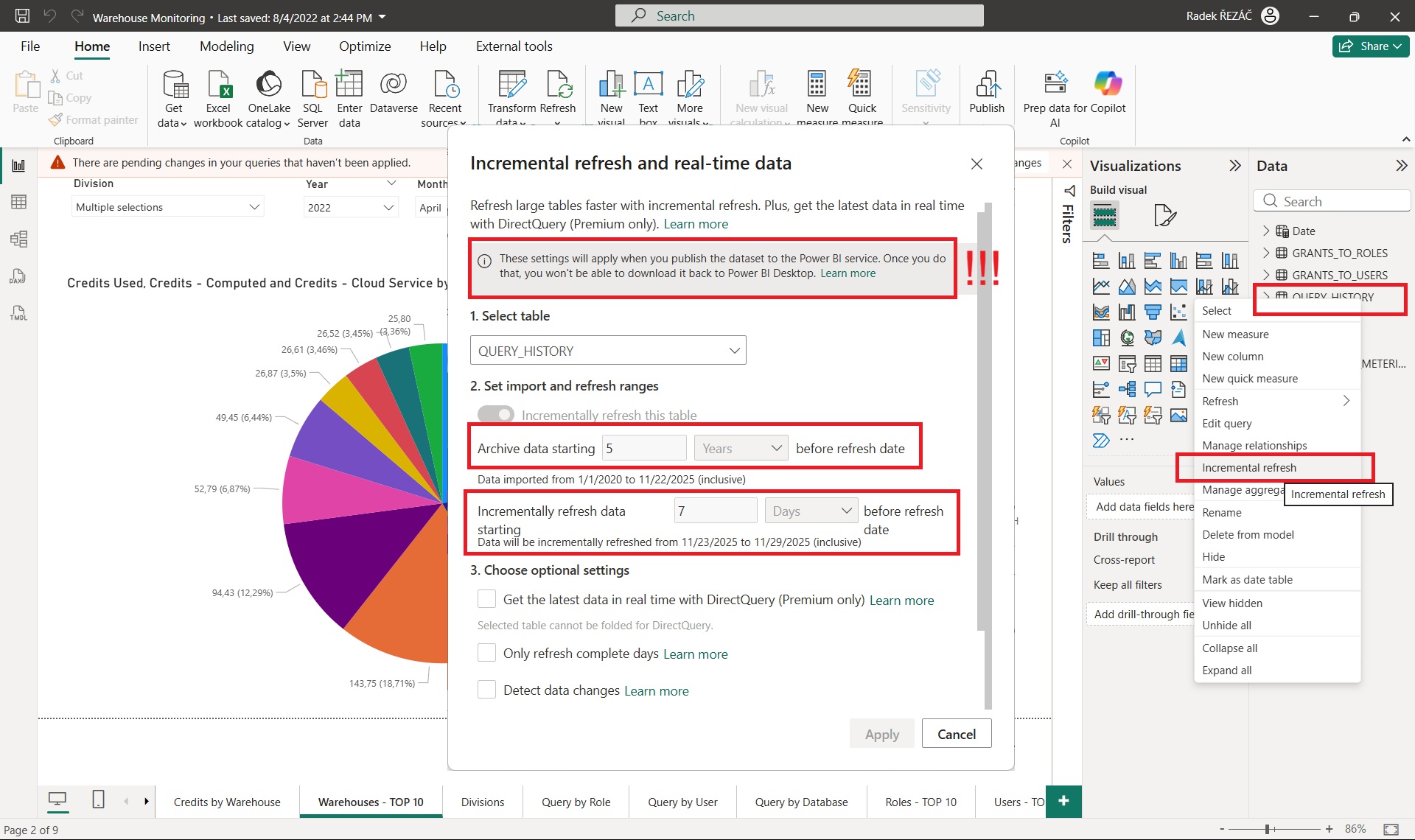
Step 5: Publish to Power BI Service
- Click Publish and upload the report to the Power BI Service.
- In Power BI Service, navigate to Dataset Settings —> Refresh —> Scheduled Refresh.
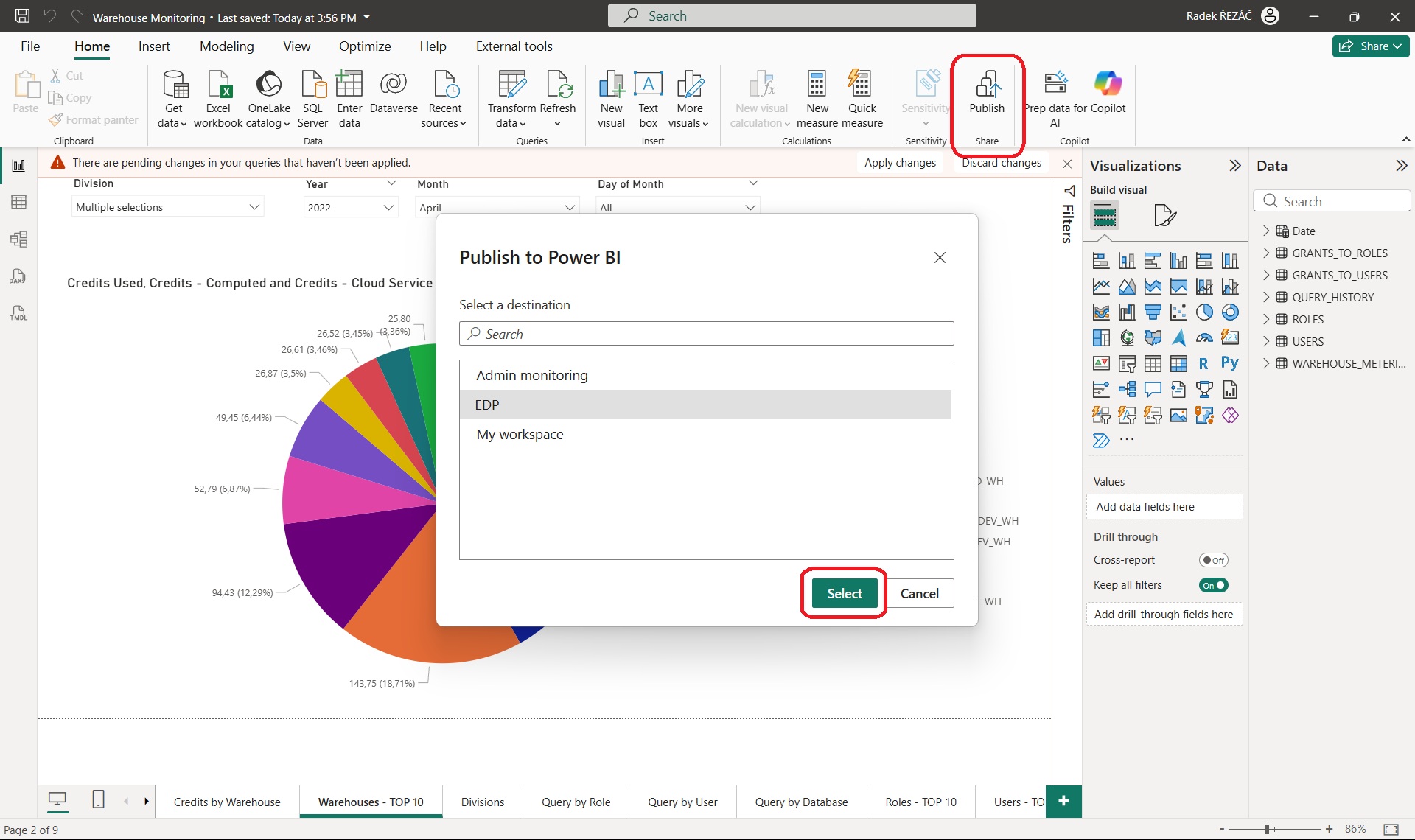
Step 6: Test and Verify Refresh
- Run a manual refresh to verify if only recent data updates.
- Monitor refresh logs for errors.
Limitations of Power BI Incremental Refresh
- Requires a Premium or PPU License: Incremental Refresh in Dataflows is available only in Power BI Premium, Premium Per User (PPU), or Fabric capacities, and that makes it inaccessible for Pro users.
- Requires a Date/Time Column: Incremental refresh depends on a Date/Time column to filter new (or modified) data. If the dataset lacks such a column, you’ll need additional transformations before implementing it.
- Cannot Refresh Deleted Records: Incremental refresh only updates new (or modified) records but does not automatically handle deleted records unless designed using custom logic or soft delete.
- Limited Data Source Support: Not all data sources support incremental refresh. It typically works with SQL databases, certain cloud-based sources, and Azure. Direct API-based sources may not be compatible.